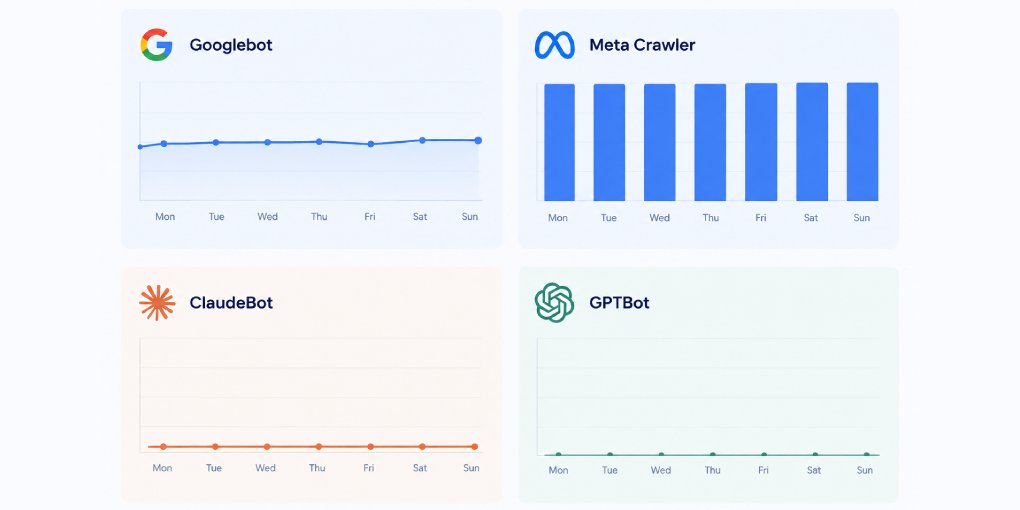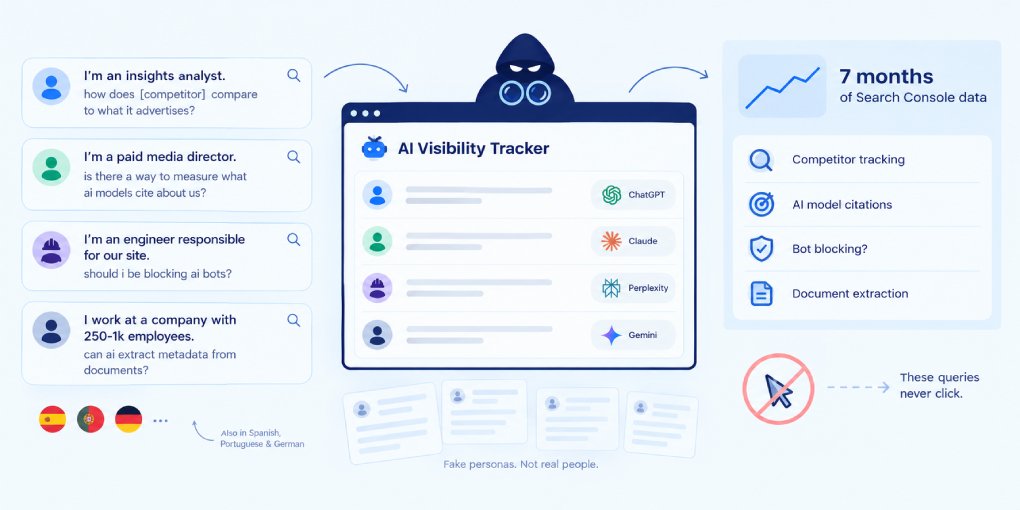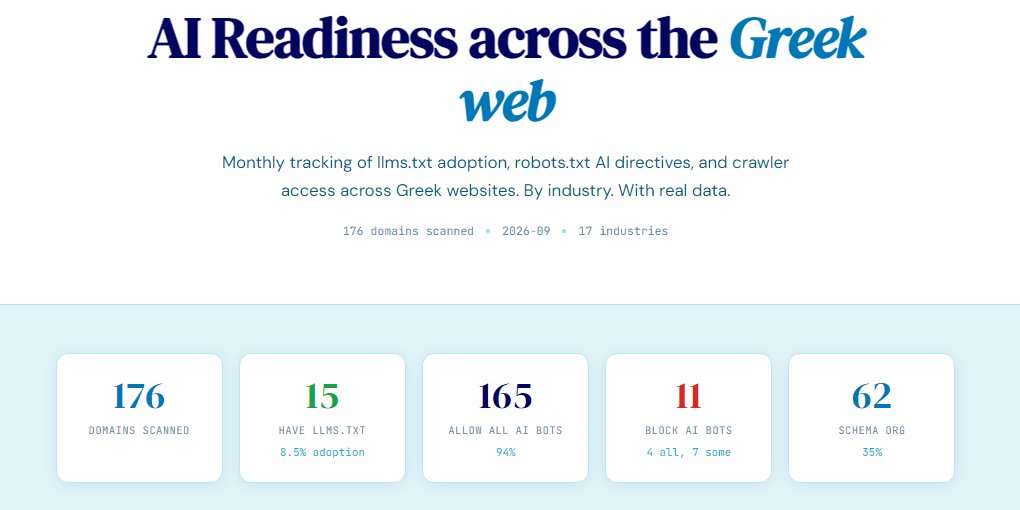
Your robots.txt file is the first thing an AI crawler reads when it visits your site. Before it processes a single page, it checks whether you’ve given it permission to proceed. A misconfigured robots.txt can silently block every AI system from accessing your content, and you might never know it’s happening.
Here’s how to build one that does what you actually want.
How robots.txt works
The file sits at the root of your domain (yoursite.com/robots.txt) and contains directives that tell crawlers what they can and can’t access. Each directive specifies a user-agent (the crawler’s name) and a set of Allow or Disallow rules.
When a well-behaved crawler arrives, it reads your robots.txt first. If its user-agent is disallowed, it leaves without crawling. If there’s no mention of its user-agent, most crawlers default to following the wildcard (User-agent: *) rules.
Two critical things to understand: robots.txt is advisory, not enforced. A malicious bot can ignore it entirely. And blocking a crawler from accessing pages doesn’t prevent it from knowing those pages exist. It only prevents it from reading their content.
The AI crawlers you should know
Each major AI company operates its own crawler. Here’s what each one does and why it matters:
GPTBot (OpenAI) - Used for both training and retrieval. When ChatGPT browses the web to answer a question, GPTBot is what fetches the page. Blocking it means your content won’t appear in ChatGPT responses.
ChatGPT-User (OpenAI) - Specifically used when a ChatGPT user asks the model to browse a URL. This is direct, user-initiated retrieval. Blocking it means users can’t ask ChatGPT to read your page.
ClaudeBot (Anthropic) - Claude’s web crawler. Used for training and retrieval. Blocking it removes your content from Claude’s browsable sources.
Anthropic-AI (Anthropic) - A secondary Anthropic crawler used for training data collection.
Google-Extended (Google) - Controls whether your content feeds into Gemini and Google’s AI features like AI Overviews. Importantly, this is separate from Googlebot. Blocking Google-Extended doesn’t affect your regular search rankings, but it removes you from AI-powered search features.
Bytespider (ByteDance) - TikTok’s parent company crawler. Used for training and content analysis.
PerplexityBot (Perplexity) - Used by Perplexity AI for real-time retrieval and citation. Perplexity is one of the most citation-heavy AI search tools, so blocking this bot means losing a strong attribution channel.
Cohere-AI (Cohere) - Used for training and enterprise AI applications.
Meta-ExternalAgent (Meta) - Meta’s AI crawler for training their LLaMA models.
A template that welcomes AI
If your goal is maximum AI visibility, start with this template:
# AI Crawlers - Allowed
User-agent: GPTBot
Allow: /

User-agent: ChatGPT-User
Allow: /

User-agent: ClaudeBot
Allow: /

User-agent: Anthropic-AI
Allow: /

User-agent: Google-Extended
Allow: /

User-agent: PerplexityBot
Allow: /

User-agent: Cohere-AI
Allow: /

User-agent: Meta-ExternalAgent
Allow: /

User-agent: Bytespider
Allow: /

# Search Engines
User-agent: Googlebot
Allow: /

User-agent: Bingbot
Allow: /

# Default - allow all others
User-agent: *
Allow: /

# Sitemap
Sitemap: https://yoursite.com/sitemap-index.xml
This explicitly welcomes every major AI crawler. The explicit Allow directives aren’t technically necessary if your wildcard rule allows everything, but they serve as documentation and prevent accidental blocking if you add restrictive rules later.
Selective blocking
If you want to allow retrieval but restrict training, you can block specific bots while allowing others. For example, allowing GPTBot and ClaudeBot (which handle both retrieval and training) while blocking Bytespider (primarily training):
User-agent: Bytespider
Disallow: /

User-agent: GPTBot
Allow: /
You can also protect specific directories while keeping the rest open:
User-agent: GPTBot
Allow: /
Disallow: /private/
Disallow: /admin/
Disallow: /api/
This gives AI crawlers access to your public content while keeping internal pages, API endpoints, and admin areas off limits.
Common mistakes
Blocking everything by default. A User-agent: * / Disallow: / rule blocks all crawlers, including AI bots, unless you add specific Allow rules above it. Many security-focused templates include this by mistake.
CMS-generated blocks. WordPress, Wix, and other platforms sometimes add AI bot blocks through plugins or default settings without making it obvious. Check your actual robots.txt file, not just your settings panel.
Forgetting the sitemap reference. Always include a Sitemap directive at the bottom. AI crawlers use it to discover your content efficiently rather than following links from your homepage.
Conflicting rules. If you have both Allow and Disallow rules for the same user-agent, the more specific path wins. But ambiguous rules create unpredictable behavior across different crawlers. Keep it simple and explicit.
Check your current robots.txt
You might already be blocking AI crawlers without knowing it. Run your site through hey-eye and check the Authority & Trust pillar. It reports exactly which AI bots are allowed and which are blocked based on your current robots.txt configuration.
If you need to create or update your file, the hey-eye robots.txt generator lets you toggle each AI crawler individually and generates a properly formatted file ready to deploy. No syntax to memorize, no formatting errors to worry about.
Deploy and verify
Upload your robots.txt to the root of your domain. Verify it’s accessible by visiting yoursite.com/robots.txt directly. Then use Google Search Console’s robots.txt tester to confirm there are no parsing errors.
After deploying, give crawlers a few days to pick up the changes. AI crawlers don’t re-read robots.txt on every visit. Most cache it for 24 hours or more before checking again.
The file is small. The impact is not. Five minutes of configuration determines whether your content participates in AI search or sits on the sidelines.